Customs dashboards
Consolidation
This screen allows you to monitor Conso files and messages integrated and validated through FastTrack standard processing. It displays global information about the Conso files or messages sent by your Business Unit to FastTrack or routed from FastTrack to your Business Unit. A defined set of validation rules will be used to analyze the different Conso files and messages in order to provide you with different information such as:
- A global status on Conso and Shipments inside a Conso on whether it has been routed or not and if it has raised any errors or warnings
- A view on the different errors and warnings that could have been raised for that Conso and at Shipment level
Column description
| Column Title | Column Description |
|---|---|
| Status | The status column indicates by using a simple color code if the Conso has encountered any issue (more details here) |
| MAWB / Trailer | Master Airwaybill or Trailer number |
| Consolidation MRN | MRN of electronic export declaration |
| Export.BU | Exporting BU sending the Conso file or message |
| Export.Gateway | Exporting BU depot number |
| Import.BU | Importing BU to which the Conso is routed to |
| Import.Gateway | Importing BU depot number |
| Incoming CONSO ID.Input flow ID | Identification of the Incoming Conso in FastTrack (file name or correlation ID) |
| Incoming CONSO ID.SHP | Number of shipments in the Conso |
| Incoming CONSO ID.PCL | Number of parcels in the Conso |
| Incoming CONSO ID.InvoiceLine | Number of invoice lines in the Conso |
| Incoming CONSO ID.Date & Time | Date and time of Conso reception in FastTrack |
| Outgoing CONSO ID.Input flow ID | Identification of the outgoing conso in FastTrack (file name or correlation ID) |
| Outgoing CONSO ID.SHP | Number of Shipment in the Conso |
| Outgoing CONSO ID.PCL | Number of parcels in the Conso |
| Outgoing CONSO ID.InvoiceLine | Number of invoice lines in the Conso |
| Outgoing CONSO ID.Date & Time | Data and time of Conso routing |
| Lorry | Number of transportation lorry |
| Seal Number | seal number of the Linehau |
Status information
Status will let you know if the integration of the CONSO raised any issue:
- Green means the Conso has not encountered any issue and was successfully routed to the import Business Unit
- Orange means the Conso has raised at least one warning at Conso or Shipment level but also if a duplicate of that Conso has been found
- Red color means that the Conso has raised at least one error and was not routed to an import Business Unit
Please note that the colors will be replicated on the impacted columns’ fields if any warning or error concerning that fields is raised. Also, if only one warning or error is raised for a Conso, the warning or error code will be displayed in the column field.
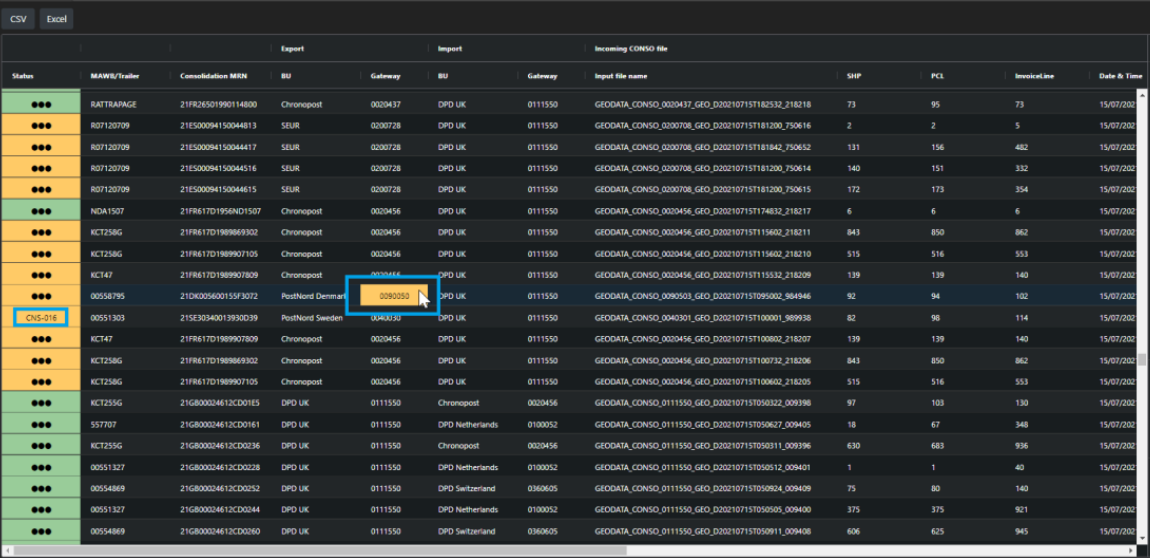
To access details of this status, you can simply click on the status column fields. A pop-up window will open and display the different warnings and errors that were raised by this Conso along with the corresponding information (rule code, error level, error type, description, and ratio (%))

Precleared
This screen gives you an overview on the volume of SHPNOTS received into Fasttrack and which came in with a Free Circulation “F” indicator, in comparison to the volume of SHPNOT received inside of a Consolidation message. All the data is displayed by date, which can be selected in the top date search field. The screen is built over a Master-detail screens mode. All data displayed in the master screen can be deployed and gives access to a sub-level detail screen.
Column description
Master screen
| Column Title | Column Description |
|---|---|
| From country | Code of the country sending SHPNOTS |
| To country | Code of the country receiving SHPNPOTS from the Sending country |
| Reception Date | Date of reception of the SHPNOT into Fasttrack |
| SHPNOT ‘F’ Free circulation | Count of SHPNOTS which were received with a Free Circulation indicator ‘F’ |
| Shipment in Conso | Count of Shipment received inside a Consolidation message |
| Total | Sum of Free circulation SHPNOTS and Shipment in Consolidation |
Sub-section screen
The detail screen displays the same information as the primary screen, but by splitting it by Sender accounts. Here are the columns added to describe the different sender accounts
| Column Title | Column Description |
|---|---|
| Accounts | Sender account ID |
| Company | Sender company name |
| Name | Sender name |
Export Information detail
On the application screens, all
When clicked, an Excel file is exported containing the information plus additional details of the count you clicked. All information contained in the screen will be exported in addition to:
- MPSID concerned
- Conso MRN
- Trailer number